Also, one of the options for which the voucher can be used is to reveal or hide tickets.
But for this option to make sense at all, it is necessary to check in the ticket configuration whether the field "These tickets are publicly visible etc." is unchecked. If you haven't done it already, the steps are as follows:
Tickets and attendees> configure> vouchers
1. Click on create a new voucher or go to an already created one that you will use, a dialog box (flyout window) will open. If you create a new voucher, fill in the required fields.
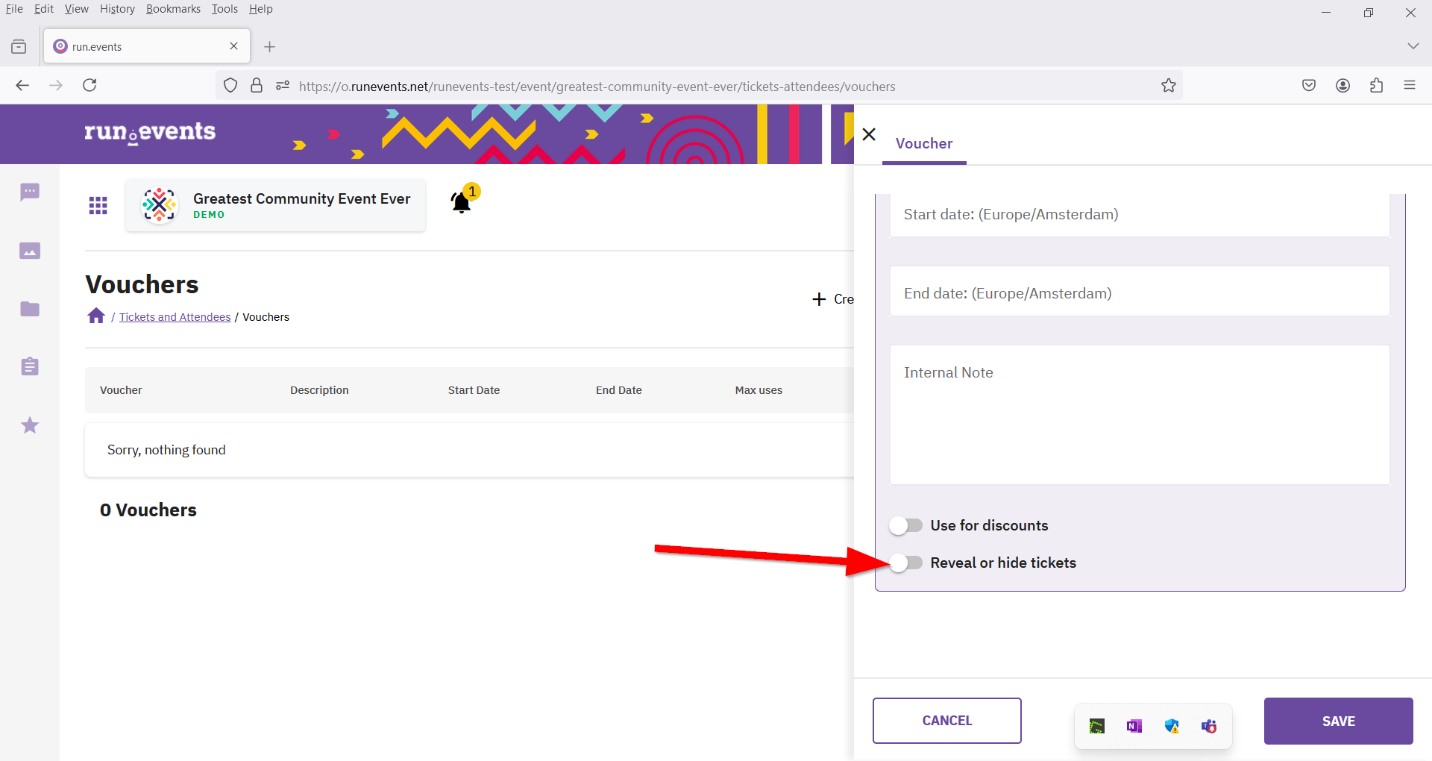
2. At the bottom of the dialog box you will see toggle reveal or hide tickets. Turn on the toggle and click the save button.
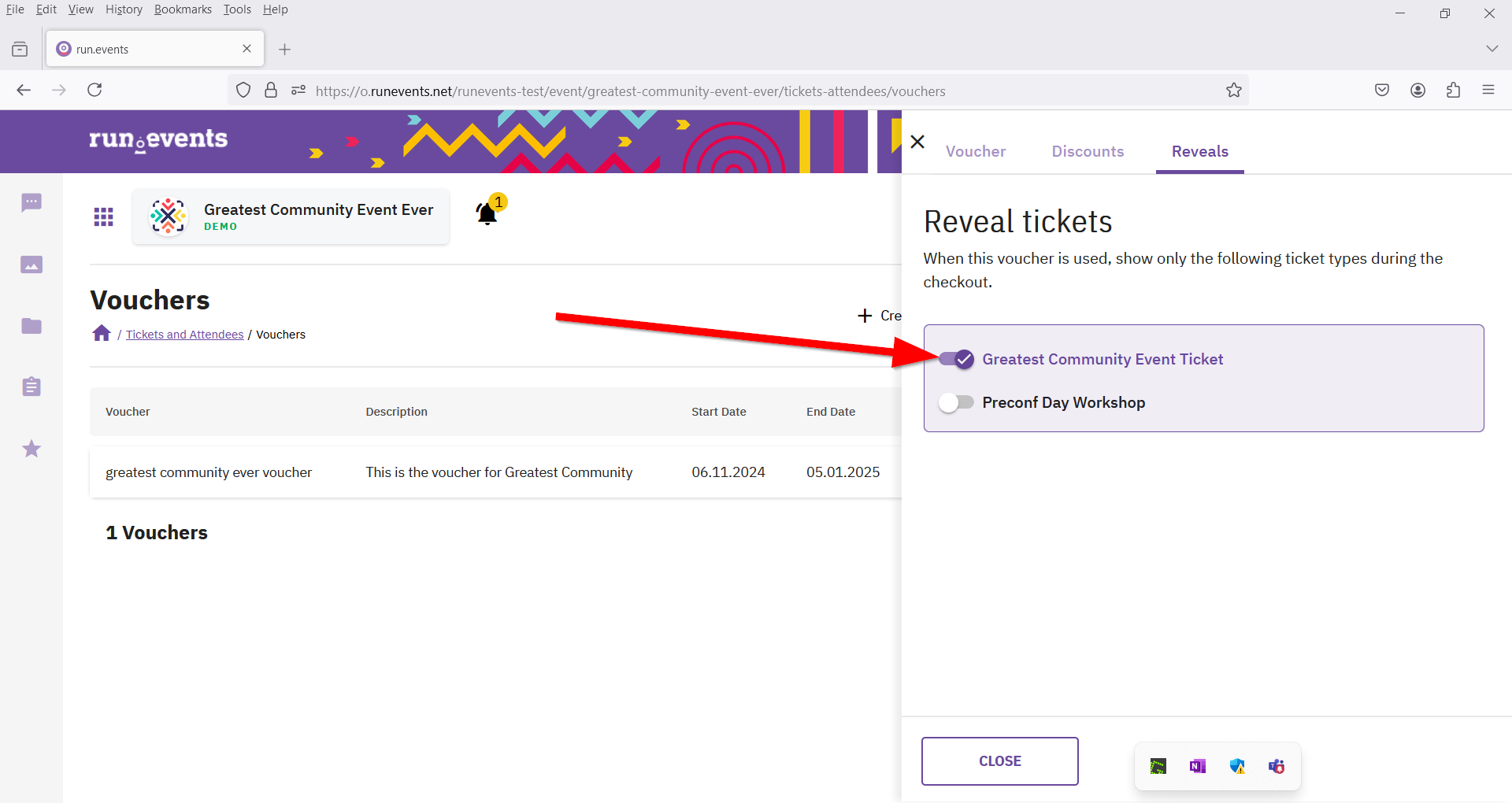
3. At the top of the window, you will see the reveals tab, click on it and select a certain ticket type so that the toggle for that ticket type will be activated.
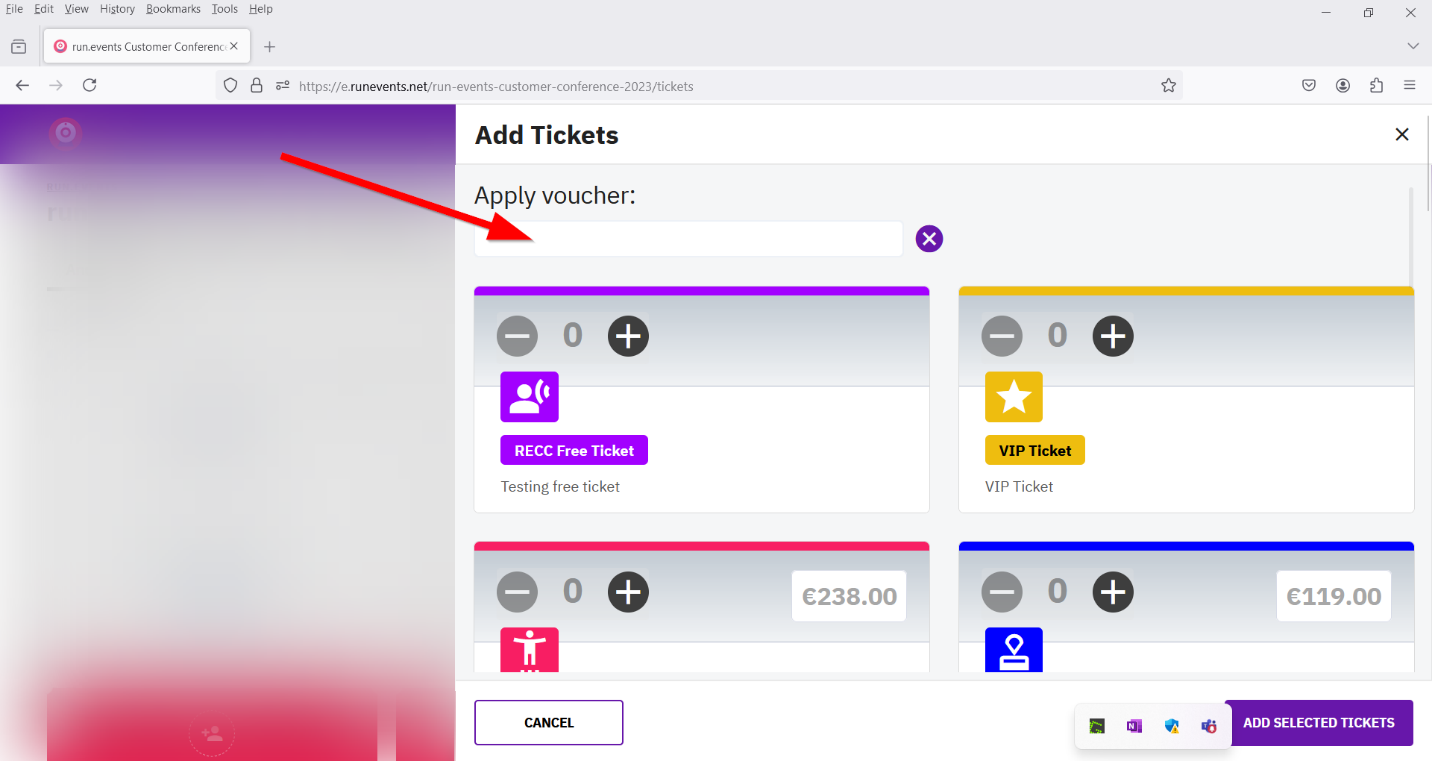
4. Try to buy that ticket, it should not be visible in the checkout wizard, but if you enter the voucher name correctly, the ticket type will become visible.
5. If you do not want a certain ticket type to continue to be visible, turn off the toggle for that ticket type.