Brand your event with your own logo and colors!

Setting up Event Logo and Colors

Learn how to customize your event's branding by uploading a logo and selecting primary and secondary colors in the event identity settings.

Article Image Alt

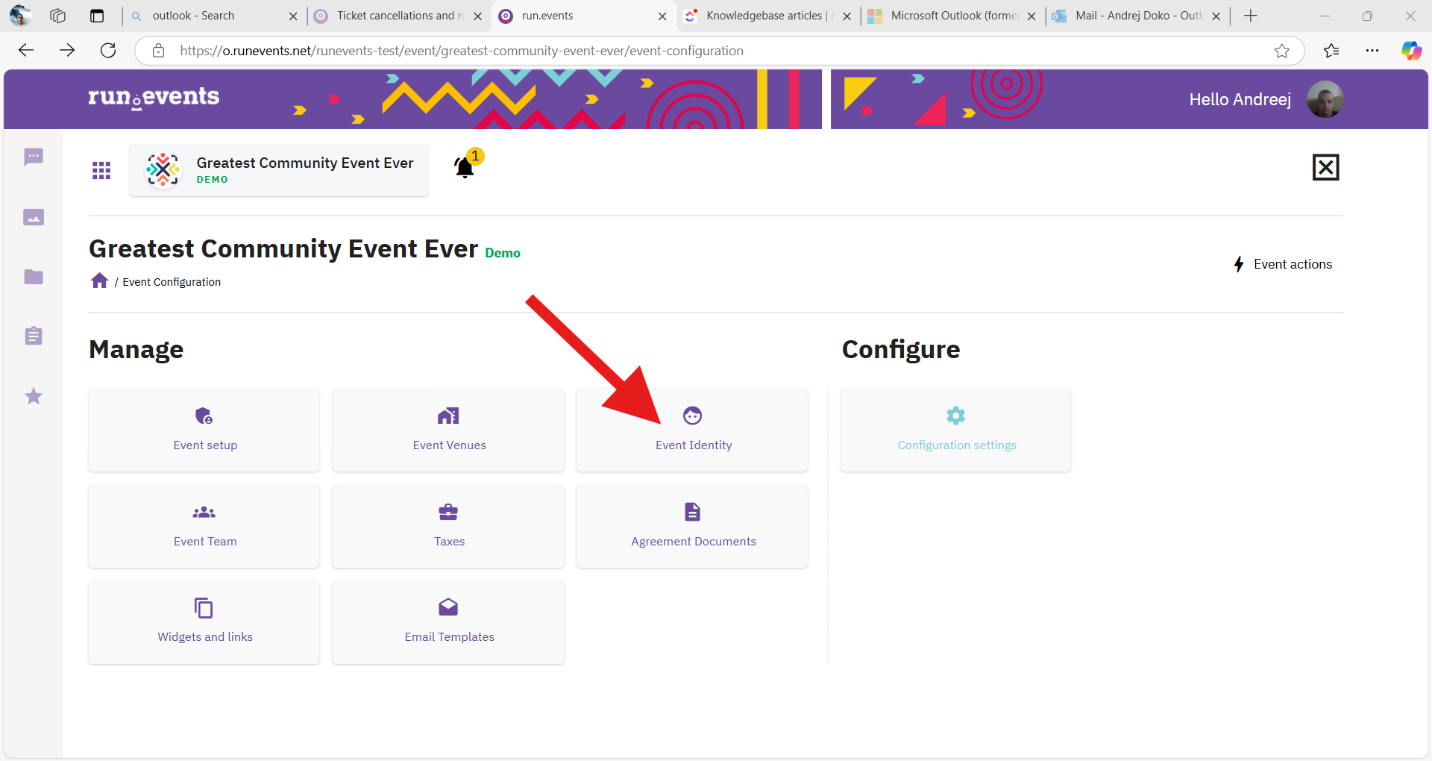
To edit the event logo and color, select configuration settings, there is the event identity.

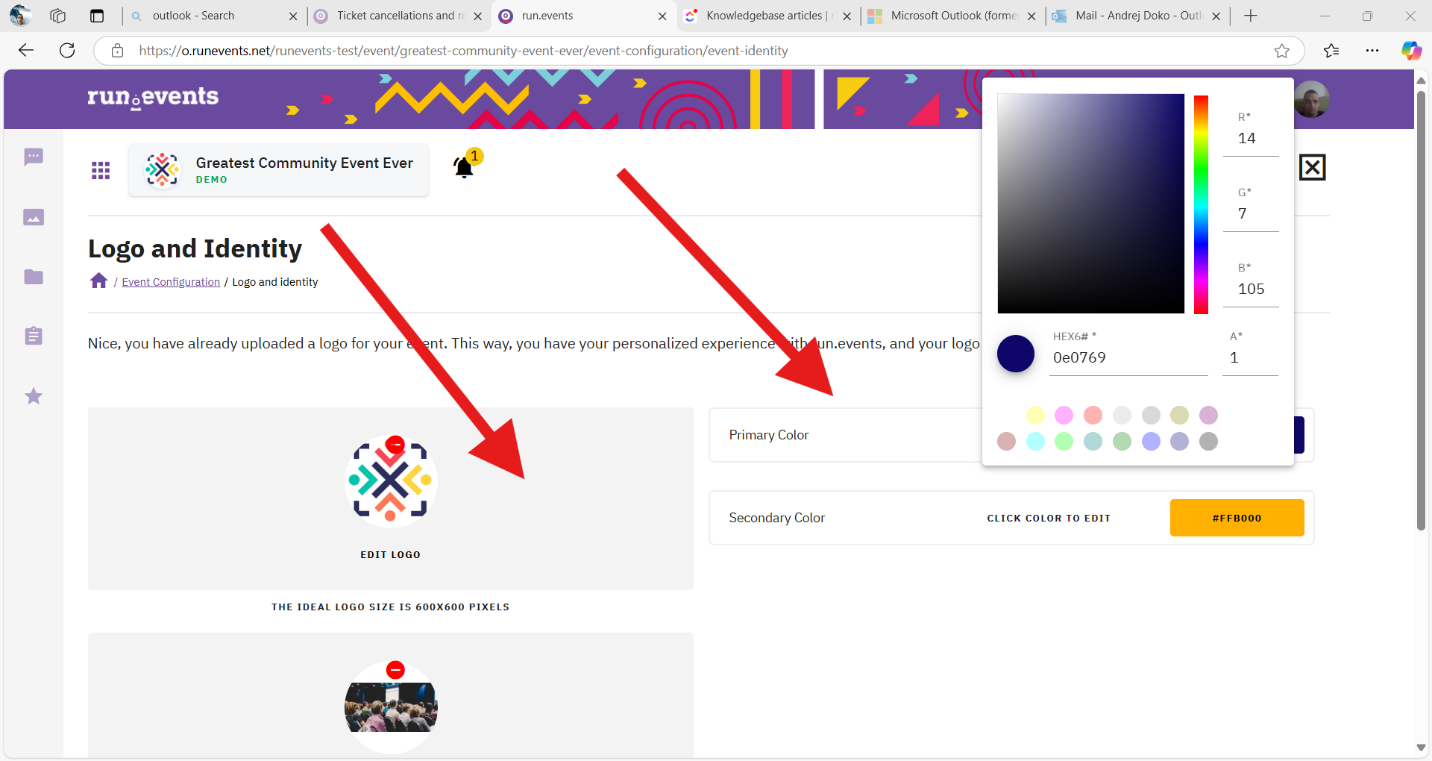
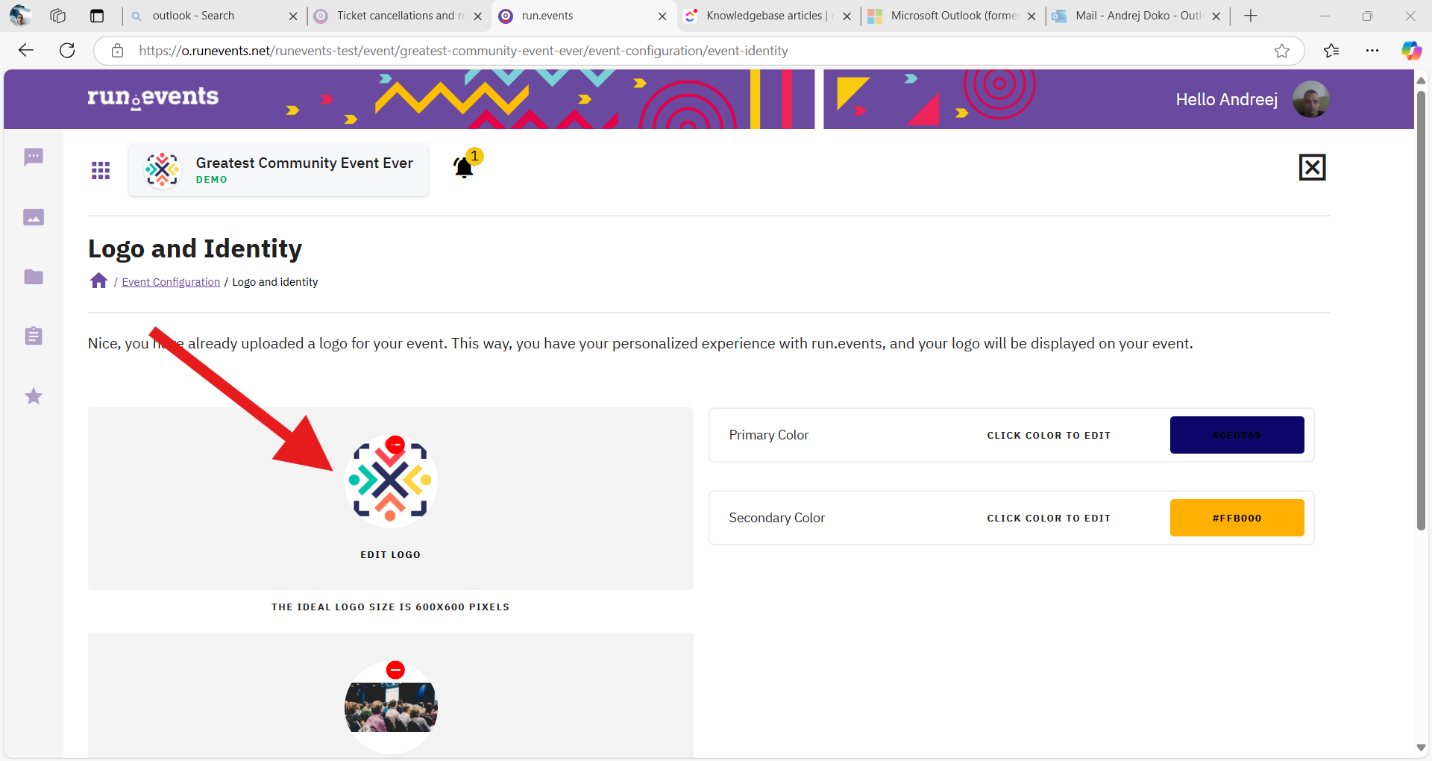
When you select the event identity, a window will open where you can choose the primary and secondary colors and logos.

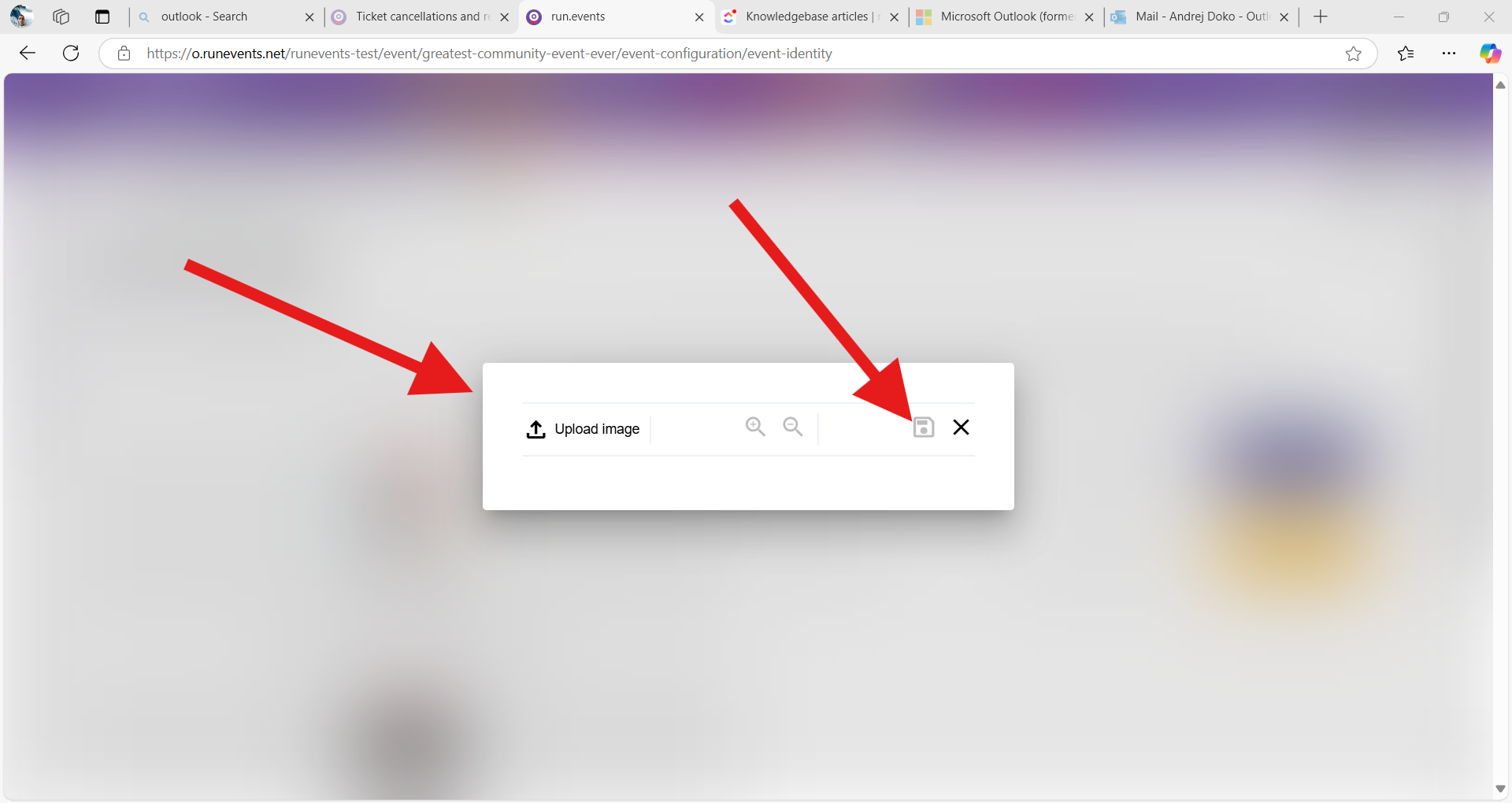
To change the logo, click on the event logo and a pop-up will open to upload a new logo. Click on the save icon and the logo should be updated. To change the color click on the color tab and select the color palette.
                                          ![0aba133222bffc624a57a36af21b91d8](https://runeventsdevpages.blob.core.windows.net/organizer-multimedia/21/c917394a-c121-4f39-9122-081dcef03b22)   ![e2ad9502b0c2675b5bbe593267b5423d](https://runeventsdevpages.blob.core.windows.net/organizer-multimedia/21/335a1340-1a6b-46a3-ac4b-e656e7d3cfda)   ![96e5c1eb395858339269ea6a39eba8e8](https://runeventsdevpages.blob.core.windows.net/organizer-multimedia/21/c6e5a826-ab59-4fd0-8b08-6f2c3e7114dd)   ![72a1c24ff1c3b4e9e5468d1c4ebe925d](https://runeventsdevpages.blob.core.windows.net/organizer-multimedia/21/8bef2f4c-bd17-4695-b75a-7828ce90bfd6)